
These are general instructions for bypassing the Mac security setting. This will work when installing ScreenConnect or any other software not approved by Apple.
For information on more recent Mac operating systems (Sequoia and up) please see this article.
Click on an image to view a larger version of the image.
Open your Mac’s System Preferences (by clicking on the Apple logo on the top left corner of your screen) and click the Security & Privacy icon.
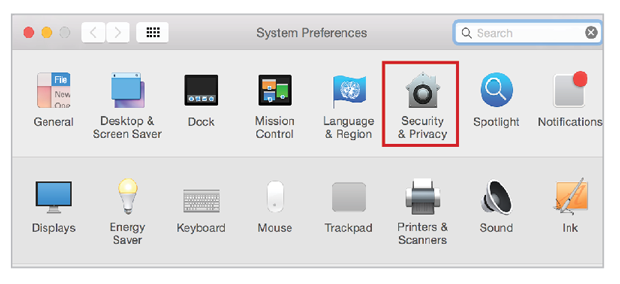
If your settings are locked, click on the lock icon

on the bottom left corner of the window and enter the admin password.
Click the Open Anyway button in the General tab. This tells your Mac that it’s okay to open the ScreenConnect app you just downloaded.
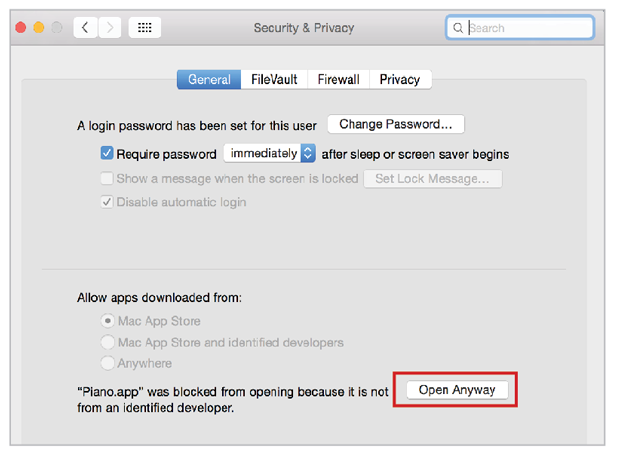
In the dialogue box that comes up, click Open to confirm that you want to open the ScreenConnect app.
ScreenConnect should then run normally and you should see the little GGIT ScreenConnect icon in the Menu Bar at the top.